
DVI and HDMI Connections and HDCP Explained
Introduction
Recently I have had a barrage of e-mails from friends and readers asking why HDTV connectivity is so complicated. I found myself sending out the same advice and comments over and over, so I wanted to share some of this advice. DVI (Digital Video Interface), HDMI (High Definition Multimedia Interface), and HDCP (High-bandwidth Digital Content Protection) are confusing everyone, so what is the story?
We Have Been Here Before
Much of this was addressed in a technical article I wrote in 2003. It discussed the looming HDTV issues that would trap consumers, the proposed HDCP content protection scheme, and their effect on everyone. Sure enough, I see frequent DVI issues and other problems that are side effects of this scheme. It does not help that HDCP is defined variously as High-bandwidth Digital Content Protection, High-bandwidth Digital Copy Protection, and High Definition Copy Protocol. It also stands for High Dependability Computing Project.
Since the rollout of HDCP, there hasn't been very much, if any, consumer education. I think some of this might have been intentional, as products with non HDCP compliant DVI would be essentially useless. Read my article from 2003 if you haven't yet, it's a good reference on what is now the "standard".
HDCP and Devices
There are two primary sources for digital video based content: Satellite and DVD. With the proliferation and popularity of digital display devices, DVI has become the best option for video performance, with component video second. The advantage lies in that with DVI there is no Digital to Analog to Digital conversion for digital display devices. The signal stays digital all the way from source to display, eliminating one more potential for image quality degradation.
Both major satellite manufacturers (Dish and DirecTV) are now using HDCP in the DVI connections with the satellite boxes. DVD manufacturers are required to use it for DVD-based material. Thus, if you really want to use DVI, you need to be HDCP compliant, from the source to the display. This means processors, buffers, amplifiers, and switches all must be HDCP compliant. If you bought an HD TV/Projector with DVI that doesn't support HDCP, you have a problem.
Unfortunately, consumers with analog displays are completely in the lurch, as many new video processors support DVI, but cannot display that content to the component video output. The DVDO HD+ video processor is a perfect example. Technically you could connect a DVI cable from a DVI output on a satellite box to the DVDO processor, scale, massage, and output it via component video in HD. But (and it's a big but) DVDO is required to shut off the component outputs when an HDCP encoded signal is present. It's frustrating, because HDCP licensing has tied the hands of premiere manufactures like DVDO.
To top it off, many projectors being sold today that have DVI still do not have HDCP (all HDMI devices are HDCP compliant). Make sure that if you buy a HD capable device and intend to use it with DVI/DVD, or DVI/Satellite, your projector has HDCP compliancy.
DVI-I and DVI-D
One big problem with DVI is that there are several variations. DVI-I is a connection found mostly on computers, and this carries not only the DVI digital signal, but also an RGBHV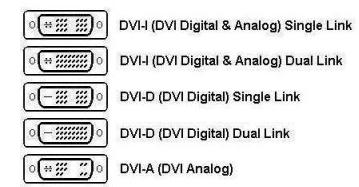 analog signal on four additional pins. Computer outputs often if not always carry both signals, and use this connector.
DVI-D is the same cable as DVI-I without the pins or wires to carry the additional RGBHV signal. DVI-D cables have 24 pins arranged in 3 rows of 8. One video signal requires 12 of these pins, meaning that your typical DVI cable can carry two video signals. Complicating this is the DVI-D Single Link vs. DVI-D Dual Link. We have found problems using Dual Link cables with DVD players and digital displays. So far, the Single Link seems to work fine.
Here is a link to a page that describes terms and compatibility of the numerous DVI connectors.
HDMI
 HDMI is a connector format that carries the same video signal as DVI, but instead of using the remaining pins for an optional video signal, pins are used to carry seven digital audio channels. HDMI also has much higher bandwidth capability than DVI. To keep confusion down, the plug is completely different.
DVI-D to HDMI converter cables and adapters are inexpensive. This means in the near future that a single cable can be connected from each source to your home theater receiver, and then to the display device. Pioneer Electronics has been a proponent of HDMI technology, and their DV59-AVi was one of the first to market with HDMI jacks. HDMI will become the de-facto standard for home theater connectivity. One cable for both audio and video, and just one connector. You don't have to worry about Dual Link or Single Link, or D, I, or A variations like there are with DVI. At CEDIA 2004, new DVD players and projectors had HDMI, but no DVI, which means DVI is just about gone after only one year on the market.
What Do I Use?
If you have a digital display that is HDCP compliant, use HDMI or DVI (with a converter cable if necessary). There are a few DVI players out there, such as the Pioneer DV59-AVi, Samsung DVD-HD931, and Bravo D1/D2. I highly suggest that if you are getting ready to buy, make sure the product you are purchasing has DVI connections that are HDCP compliant (all HDMI connections are HDCP compliant). Keep in mind that, although DVI and HDMI are compatible, there is some loss in going from an HDMI source to a DVI display (see below). So, if you are starting from scratch, get all HDMI devices.
From JJ's article on HDTV Repeaters:
DVI is an 8 bit RGB signal, while HDMI can be 8 bit RGB, or 8 bit, 10 bit, or 12 bit YCbCr. If you have a DVI source and DVI display, there will be no problem. If you have a DVI source and an HDMI display, again, no problem. If however, you have an HDMI source and a DVI display, the below-black video information may be lost in the translation. There is a bug in the Silicon Image HDMI transmitter that pops up when converting YCbCr to RGB. The HD TiVo and Pioneer 59AVi do not have this problem.
Even though source information (DVDs, HD) is all 8 bit color, if DSP is applied in 8 bit, such as in a video processor, rounding errors will toss out some of the data. On the other hand, if the data are 10 bit, such as with YCbCr, then the rounding errors don't occur. In fact, 14 - 16 bit is optimum for processing. Also, DVD data are YCbCr, and are converted to RGB in the player for the DVI output. RGB cannot represent all the data in YCbCr, and this is why the below-black information gets truncated.
If you have an analog component display, the good news is that most manufacturers are providing HDTV content over component video connections for the time being. If replacing equipment, make sure that you move to HDMI. The bad news is that content providers can (and will) pull HD content from component video outputs at some point, forcing HDCP on the masses. Expect HD DVD players to only support HDCP.
If you have an RGBHV analog display such as a CRT projector, trancoders can bring you to component video, but unfortunately nothing can bring you to HDCP. I hate to think that my Runco DTV-933 CRT display will at some point not be able to display HD content as HDCP gets enforced. But unless someone makes retrofit cards for our CRT projectors, there is no hope.
Conclusions
I hope this has helped explain some of the issues and decisions related to DVI, HDMI, and HDCP. While we as consumers are being forced to use HDCP, this also means that the industry has no excuse not to produce HD content. DirecTV tells us that they expect all programming to be HD by 2007. Let's hope so.
Brian Weatherhead



 YouTube
 Facebook
 Twitter
 LinkedIn
 Pinterest
 Google+
 Instagram
Magazine Publishing Solutions by
 Advontemedia